Google Veo 3.1 AI Video Generator
Turn prompts, images, or frame direction into cinematic AI videos with native audio, vertical output, and tighter control over scene motion.
Google Veo 3.1 is built for creators who need more than generic text-to-video clips. Use it to block out cinematic scenes, turn product ideas into launch-ready visuals, generate mobile-first video ads, or guide motion with images and first or last frame direction.

Try Veo in the Playground
Start with a Veo model selected, drop in a prompt or reference image, and move from reading straight into testing.
How to Generate Better Veo Videos
The fastest path is simple: define the shot, add only the controls that matter, then iterate from the first usable result instead of over-writing one giant prompt.
Begin with a prompt, a reference image, or a first and last frame concept. Use the input that gives the model the strongest signal for subject, composition, and story direction.
Add camera movement, pace, environment, lighting, and audio cues only after the core scene is clear. This keeps prompts focused and makes iteration easier.
Check framing, motion quality, and subject consistency first. Then refine one dimension per pass, such as camera movement, sound design, or scene energy, until the clip matches the brief.
What Veo Gives You Control Over
These are the controls that matter when you need a result you can actually ship, pitch, or build on.
Text-to-Video with Stronger Scene Direction
Use structured prompts to describe subject, action, framing, environment, and pacing so the shot feels intentional instead of loosely animated.

Image-to-Video and Reference Guidance
Bring in an image when style, product details, or character identity need to stay closer to the source than prompt-only generation can guarantee.
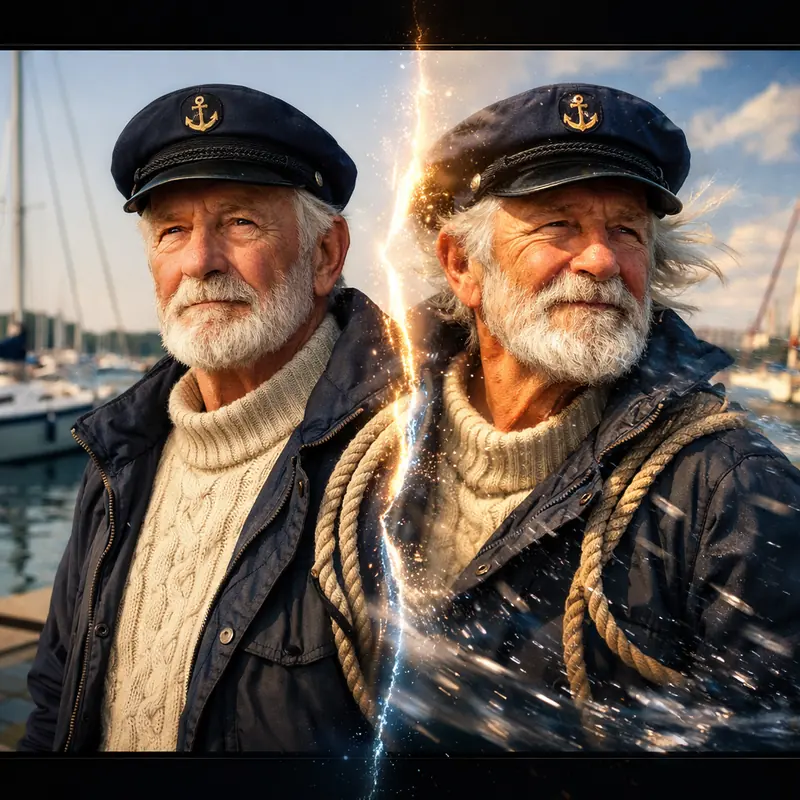
First and Last Frame Control
Define the opening beat and the destination frame when you want a transition, a reveal, or a more controlled motion arc between two moments.
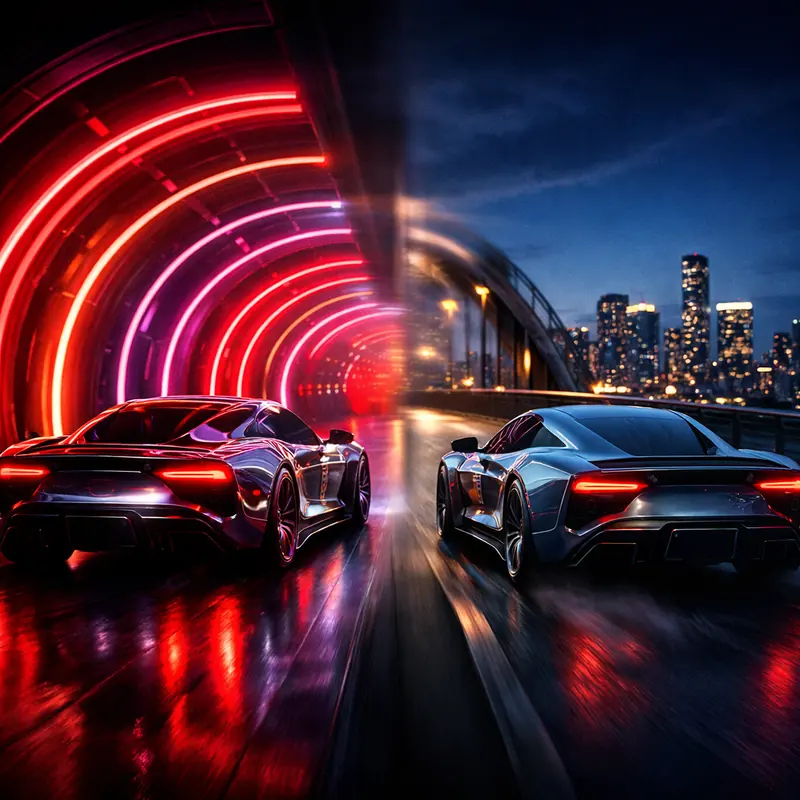
Native Audio-Aware Prompting
Describe ambience, impact sounds, speech feel, or music energy directly in the prompt when the scene needs audiovisual intent, not just silent motion.
Vertical Output for Social Surfaces
Generate mobile-first clips for Reels, Shorts, and TikTok-style placements without rebuilding the entire shot around a cropped export later.
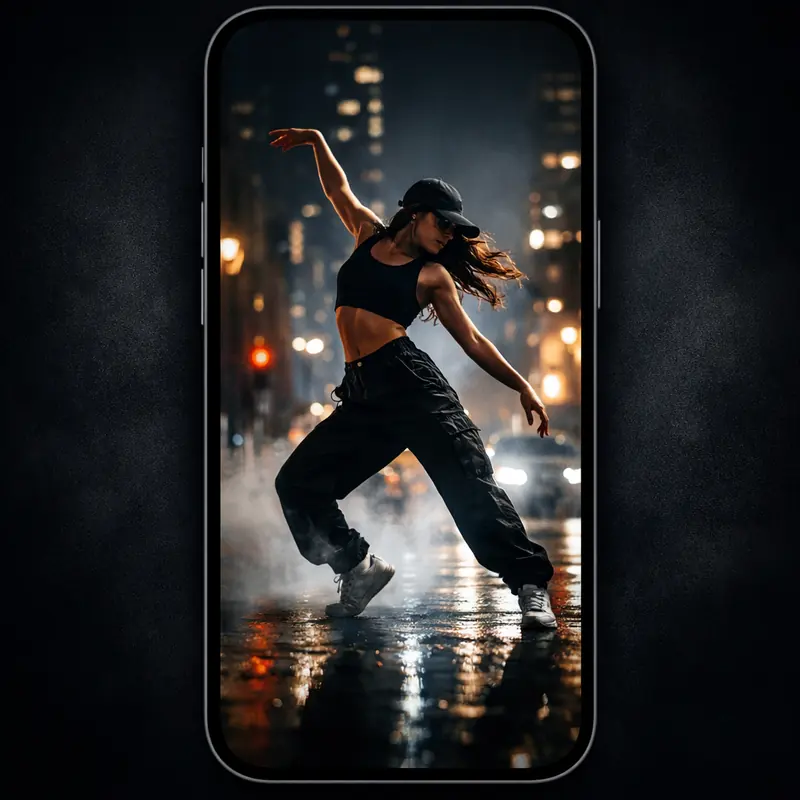
Camera and Motion Language
Call out dolly moves, push-ins, handheld energy, slow reveals, or pace shifts so motion feels directed rather than accidental.
Why Teams Reach for Veo
The value is not the feature list by itself. The value is what those controls unlock in real production workflows.
Cleaner First Drafts
When the brief is specific, Veo gets you closer to a usable first draft with less random motion, weaker framing, or generic scene interpretation.
Who it is for
Social Media Creators
Use Veo to make short-form videos with stronger hooks, better framing, and vertical output that feels designed for mobile instead of cropped for it.
YouTube Creators
Build intros, visual explainers, B-roll inserts, and cinematic cutaways that look more intentional than filler clips.
Marketing Teams
Turn campaign ideas, feature launches, and ad concepts into quick video drafts that are easier to pitch, test, and refine.
Agencies and Creative Studios
Prototype storyboards, mood-driven concepts, and client-facing visuals before moving into heavier production or edit work.
Product Storytellers
Create feature reveals, product stories, and launch visuals where motion, pacing, and consistent art direction all matter.
Use cases
Prompt and workflow guidance
A prompt formula that works
Start with subject and action, then add environment, framing, camera move, lighting, pace, and audio cues. Example: a chrome concept car exits a tunnel at blue hour, low tracking shot, wet pavement reflections, fast acceleration, distant city ambience, cinematic contrast.
When to use an image or frame guidance
Use an image when the product, character, or art style must stay recognizable. Use first and last frame direction when you care more about the transition path, reveal, or shot ending than about open-ended motion.
How to shape social versus cinematic outputs
For social clips, keep prompts tighter, lead with the main action, and call out vertical framing. For cinematic scenes, spend more words on environment, lens feel, pacing, and sound so the shot has room to breathe.
FAQ
More to explore
More Tools





Start Creating with Veo
Open the playground, test one clear prompt or reference-led idea, and use the first draft to refine motion, framing, and sound until the result is ready to share.