Image to Video AI Generator
Turn a single image into a moving shot with prompt control, camera direction, and social-ready output.
Image-to-video works best when you already have the visual you want to preserve. Use one reference image to animate portraits, product hero shots, scenes, or brand visuals without rebuilding the whole idea from text alone.
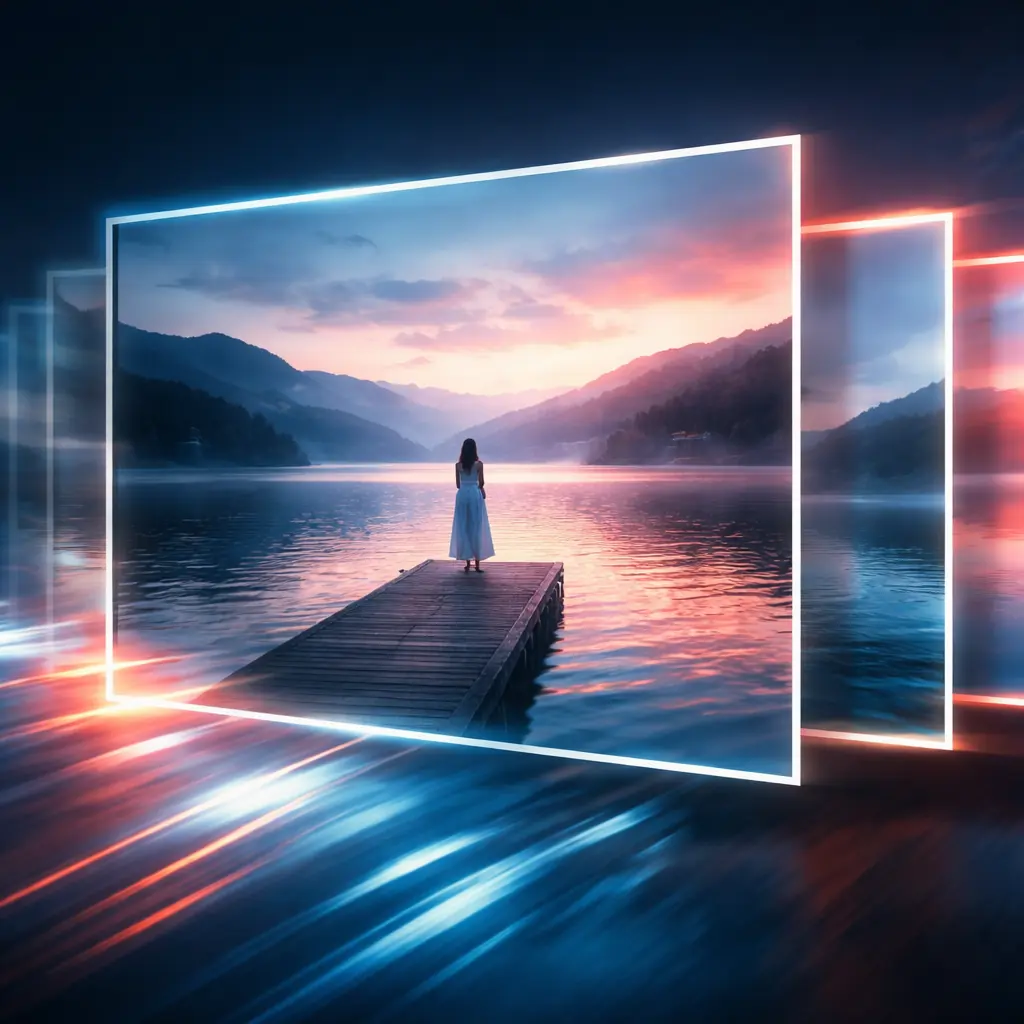
Try Image-to-Video in the Playground
Upload a reference image, add a concise motion prompt, and test the still-to-motion workflow directly in the video workspace.
How Image-to-Video Works
The process is straightforward: start from the frame you want to preserve, describe the motion you want to add, then refine pacing and framing until the shot feels usable.
Choose the portrait, product shot, or scene still that already has the composition and visual identity you want to protect.
Add prompt direction for subject movement, environmental motion, camera feel, lighting, or reveal timing so the clip grows from the original image instead of drifting away from it.
Check subject fidelity, motion quality, and framing first. Then adjust one variable at a time until the clip is ready for social, concept, or product storytelling use.
What You Can Do with Image-to-Video
These are the controls people care about when a still image needs to become a believable moving shot.
Animate a Single Still into a Moving Shot
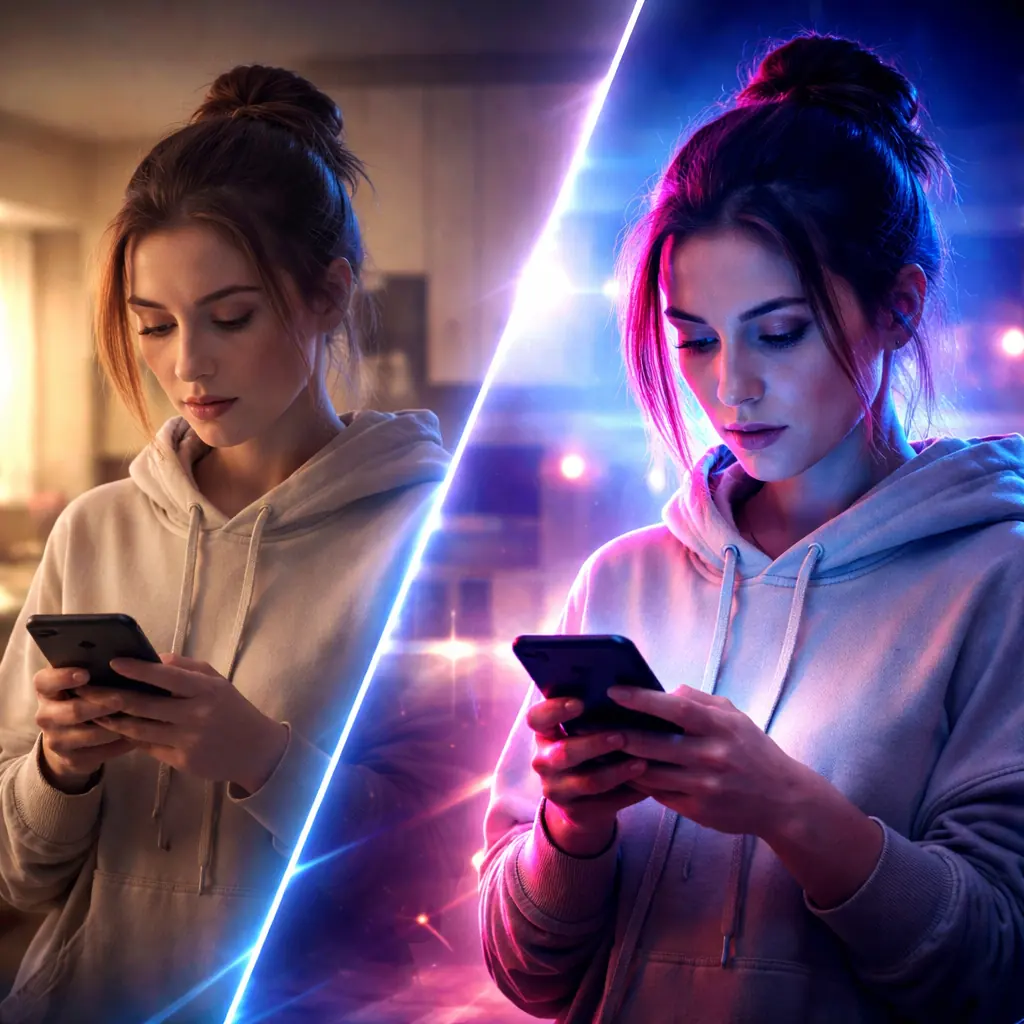
Start with one image and turn it into a short clip with subject motion, environmental movement, and a more cinematic sense of time.
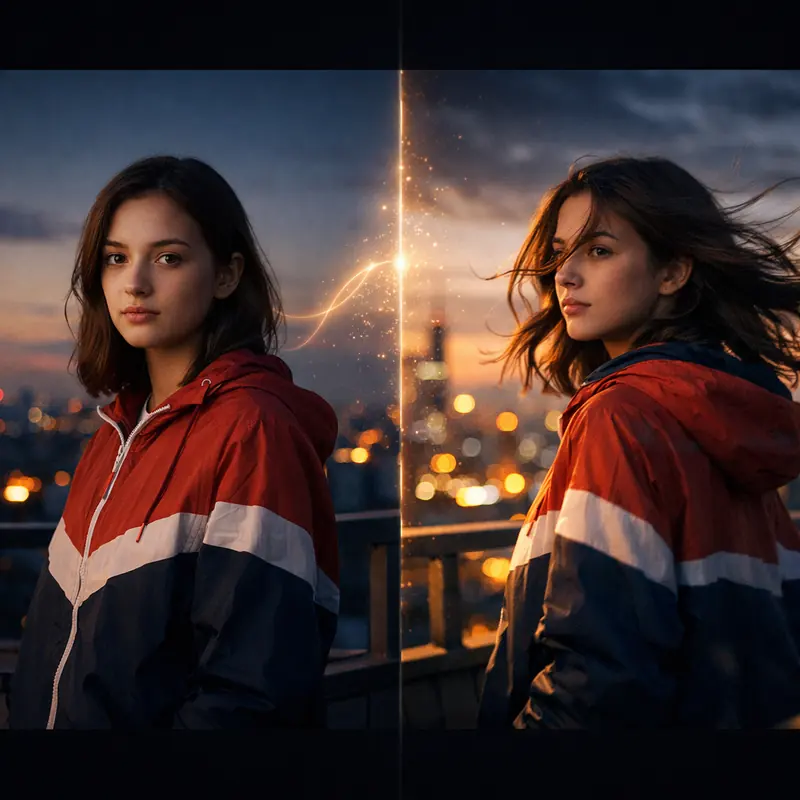
Keep Product or Character Identity Closer to the Source
Image guidance helps preserve shape, styling, and composition better than prompt-only video generation when consistency matters.
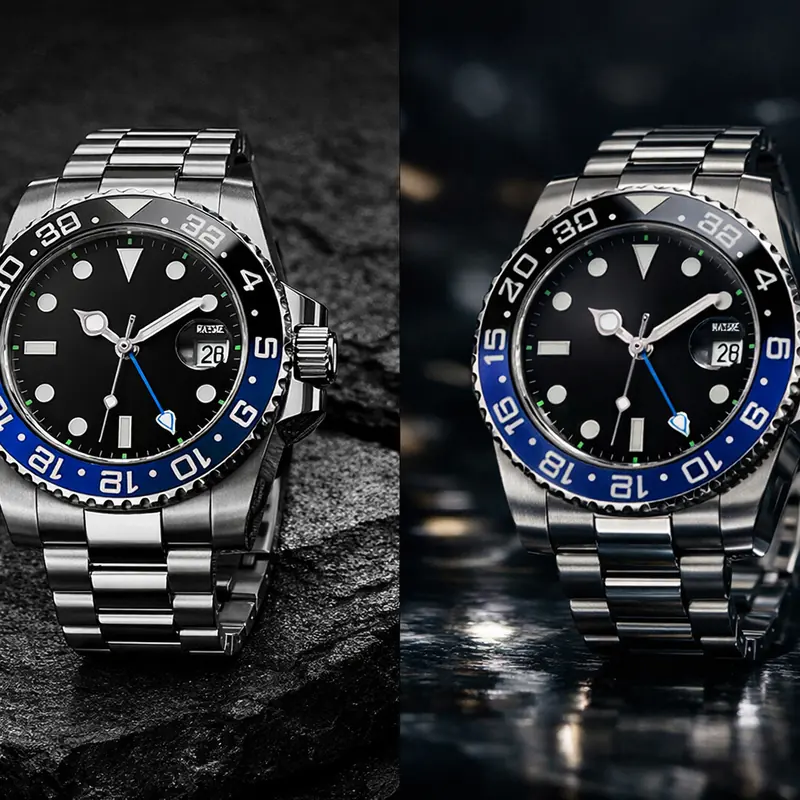
Build Product Reveals from One Hero Frame
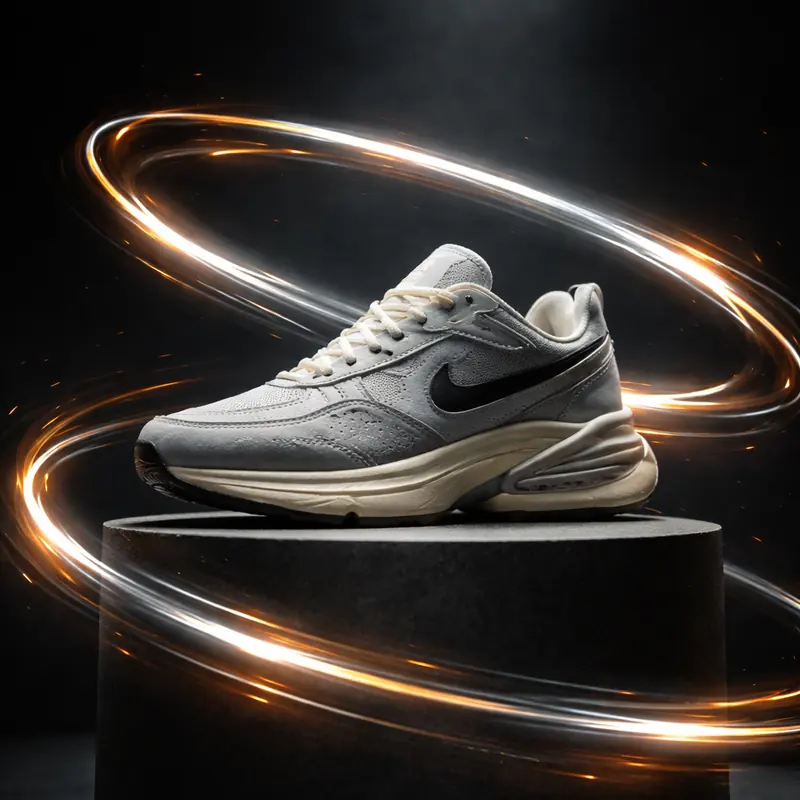
Use one polished product image to create reveal shots, dramatic turns, light passes, or launch visuals without a full production setup.
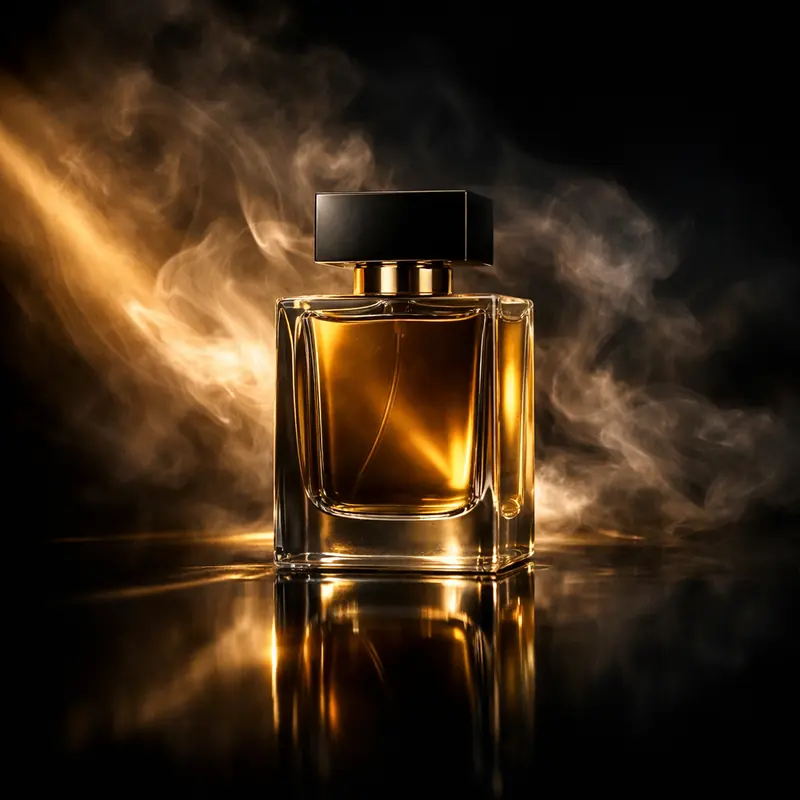
Add Camera Direction to a Static Composition
Prompt in push-ins, pans, orbit feels, or slow reveal movement so the result looks directed rather than randomly animated.
Turn Key Visuals into Social Clips
Take brand images, campaign stills, or creator visuals and adapt them into short motion assets for reels, paid social, or landing page loops.
Guide Motion with Stronger Transition Thinking
Treat the still as the opening state of the shot and prompt toward a clear destination, so motion feels intentional instead of decorative.
Why Teams Use Image-to-Video
The payoff is not just motion. It is faster iteration when the visual starting point is already strong.
Faster First Drafts
A strong input image gives the model a better starting point, so you spend less time recovering the composition or subject from vague prompt results.
Who it is for
Creators and Editors
Turn portraits, concept art, and cover images into motion clips without rebuilding the look from scratch.
Marketing Teams
Animate campaign stills, product imagery, and launch visuals into short ads or landing page video loops.
Product Storytellers
Use one strong hero frame to create reveals, close-ups, and scene transitions that feel more polished than a static image carousel.
Design and Brand Teams
Extend key visuals into motion while keeping brand colors, composition, and subject identity closer to the approved source asset.
Use cases
Prompt and workflow guidance
A prompt formula that works
Start with the subject in the image, then add motion, camera direction, environment, pacing, and mood. Example: a luxury perfume bottle on black glass, slow push-in, soft swirling mist, warm highlight sweep, premium studio mood.
When image-to-video beats text-to-video
Choose image-to-video when composition, styling, or subject identity is already solved. It is usually the better workflow for product visuals, brand art, portrait shots, and any scene where fidelity matters more than open-ended generation.
What to watch for in the first pass
Review whether the subject stays recognizable, whether motion feels natural, and whether the shot moves with a clear purpose. Fix identity drift and awkward camera movement before adding extra detail to the prompt.
FAQ
More to explore
More Tools

Turn a Still into Motion
Upload a strong image, add clear motion direction, and use the first draft to refine camera feel, pacing, and visual fidelity until the clip is ready to ship.